
Guide · Mentors
For mentors and salon owners
A mentor is the licensed stylist who trains the apprentice, usually the salon owner. Here is the setup, each task in the app step by step, and what a mentor takes on.
Get yourself set up before your apprentice’s first day.

01Getting started
Setup takes a few minutes in the app, and each screen tells you what it is for. Here is the whole path, in order.
Download and create the account
- Download Rootegra Academy from the App Store on your iPhone.
- On the sign-in screen, tap Create an account. Under How will you use Rootegra Academy?, choose I mentor apprentices.
- Enter your name, email, and a password of at least 10 characters, then tap Create account.
- The setup steps begin with Welcome to the Academy. Tap Let’s go.
- A few details. Enter your first and last name. Your name goes on every record you sign off. Phone and mailing address are optional.
Name the salon
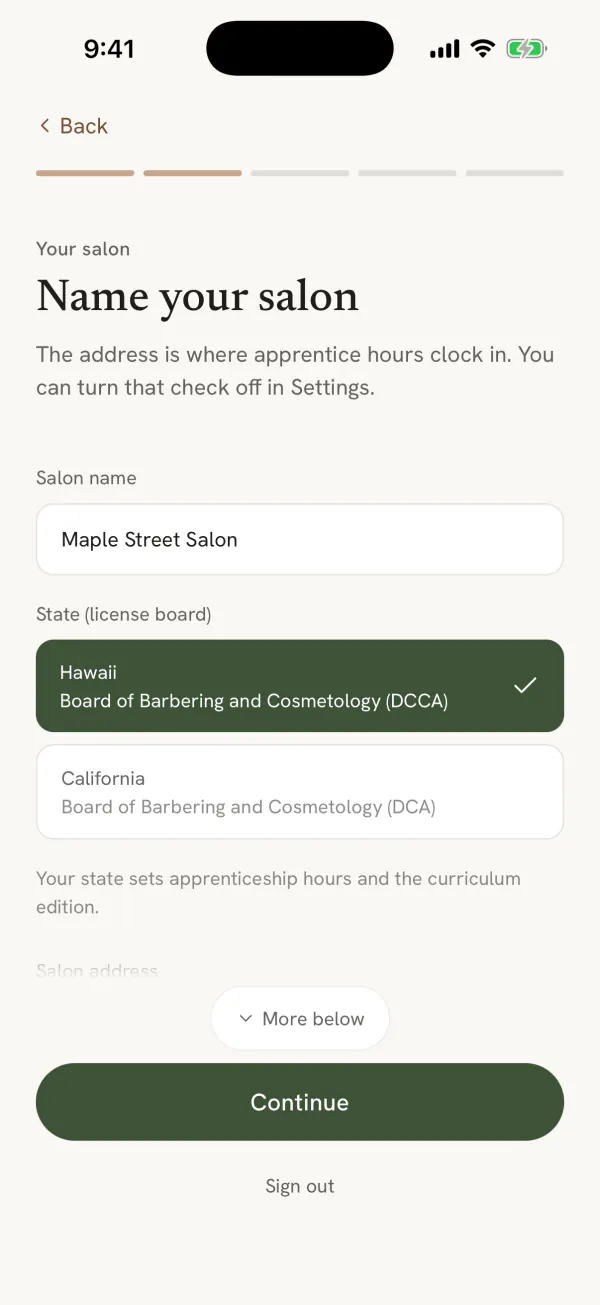
Enter the salon name and search for its address. The address is where apprentice hours clock in, and it has to be a place the map can find; if it cannot, check the street, city, and state.
The salon’s state sets the hours, curriculum, and written exam your apprentice studies for. Hawaii and California are offered.
The tour
A short tour shows the main tasks with working demos and sample people: Jessica Smith as the mentor and Ann Thompson as the apprentice. You try each one with a tap.
- Invite your apprentice. The invitation goes by email, with a code you can also share yourself.
- Assign a module with a due date.
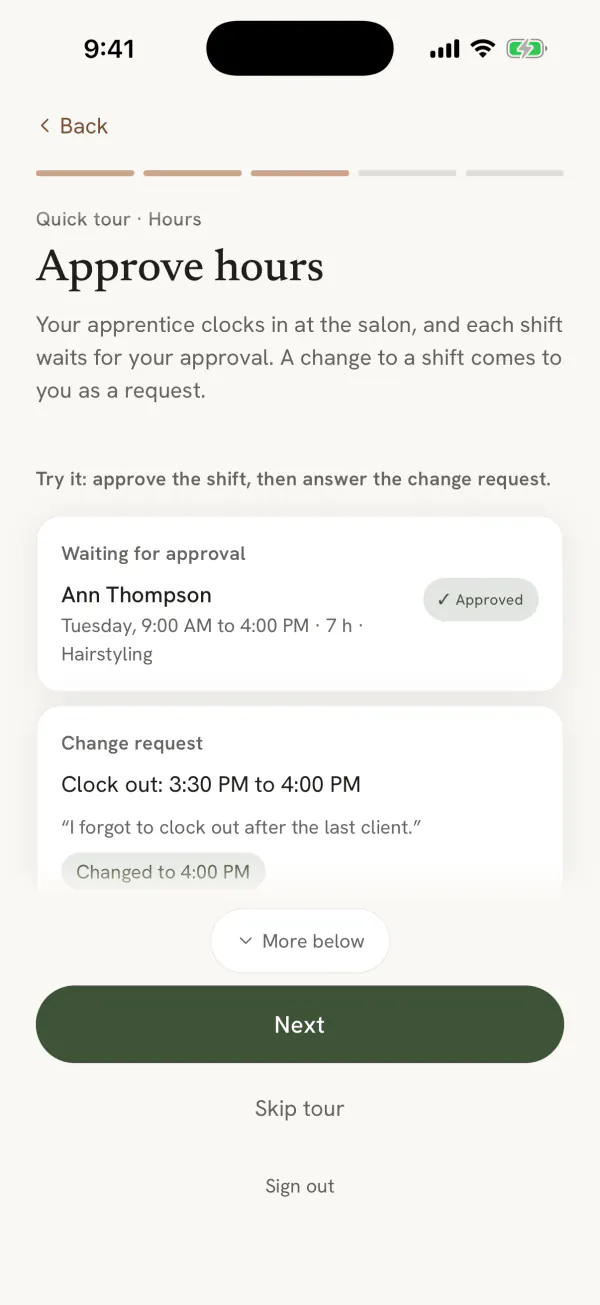
- Approve hours and answer a change request.
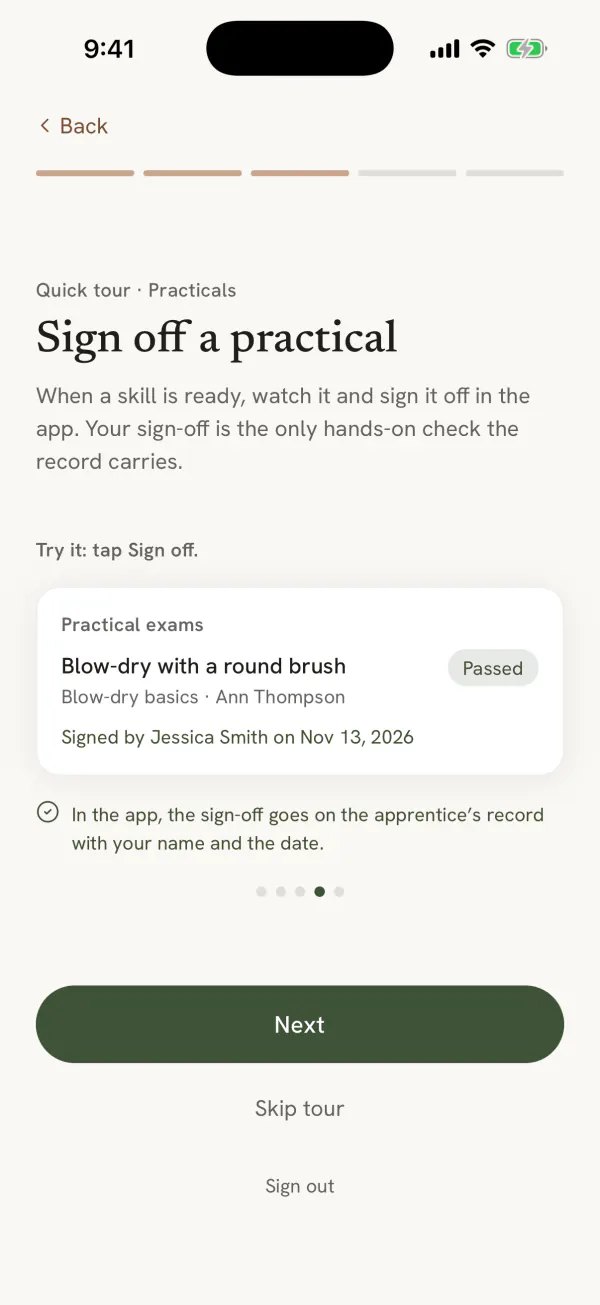
- Sign off a practical.
- Stay on top of it. One short note in the morning when something is waiting, and Today’s tasks for the apprentice.
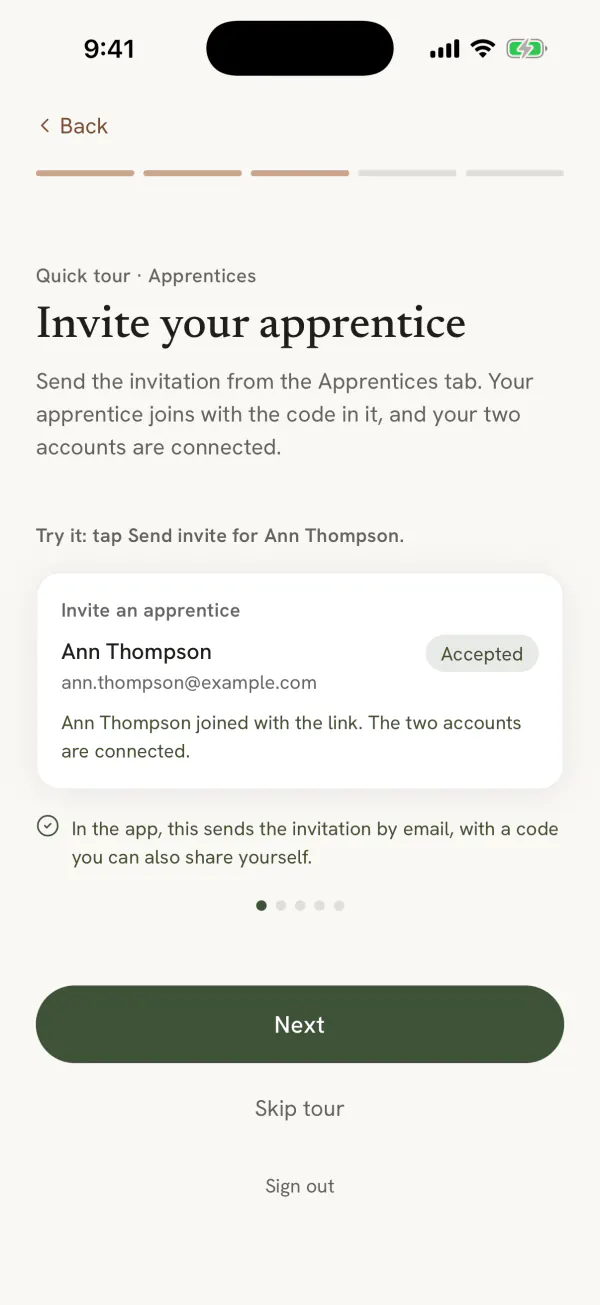
Invite your apprentice. 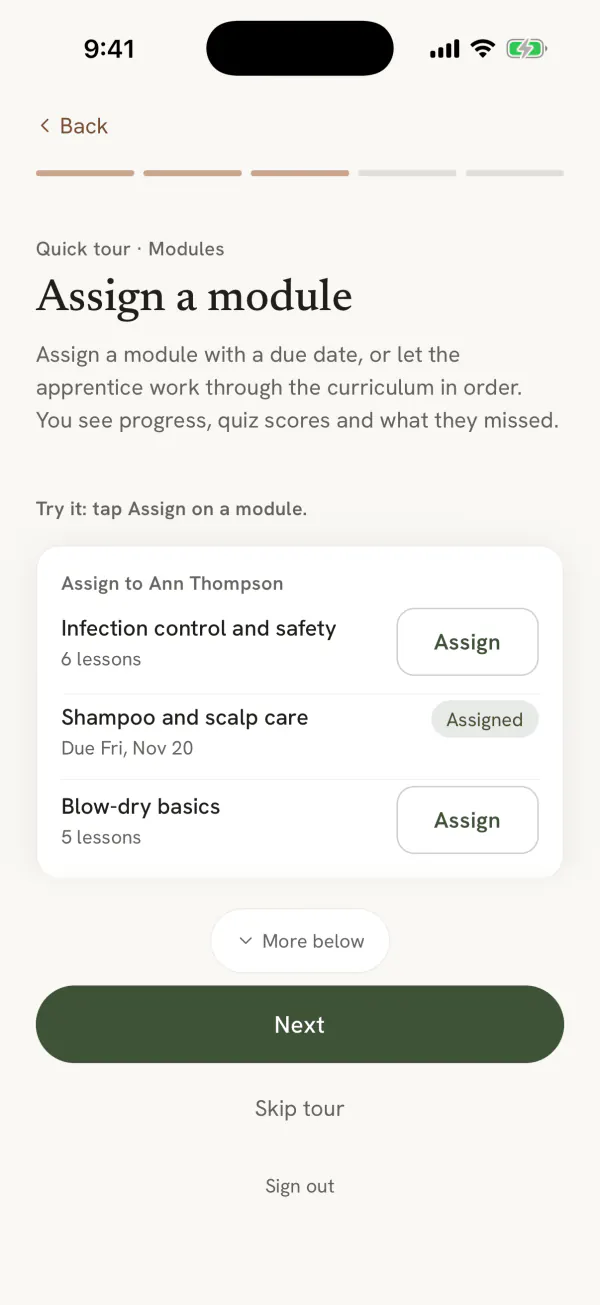
Assign a module. Approve hours. Sign off a practical. 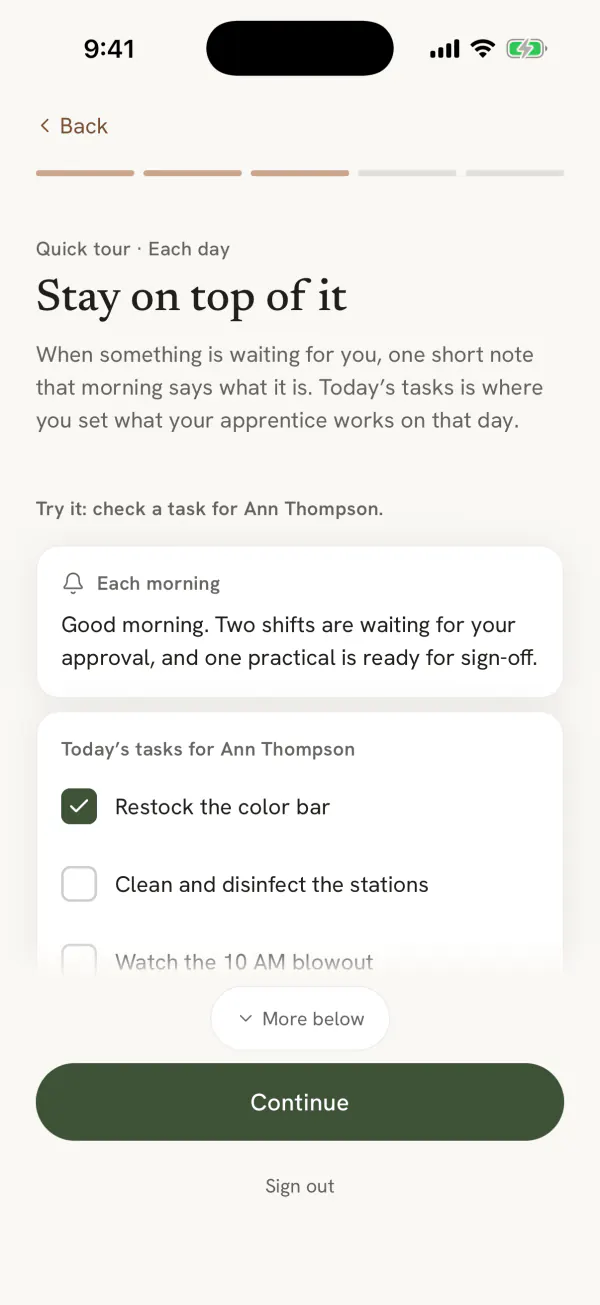
Stay on top of it.
What a mentor takes on
The next step lists what a mentor does, with a few real cases to decide and a short list under What you agree to. Check every line, or tap Read it later.
The same content is under More › Mentor guide › What a mentor takes on. It is summarized below, and you can try the cases yourself.
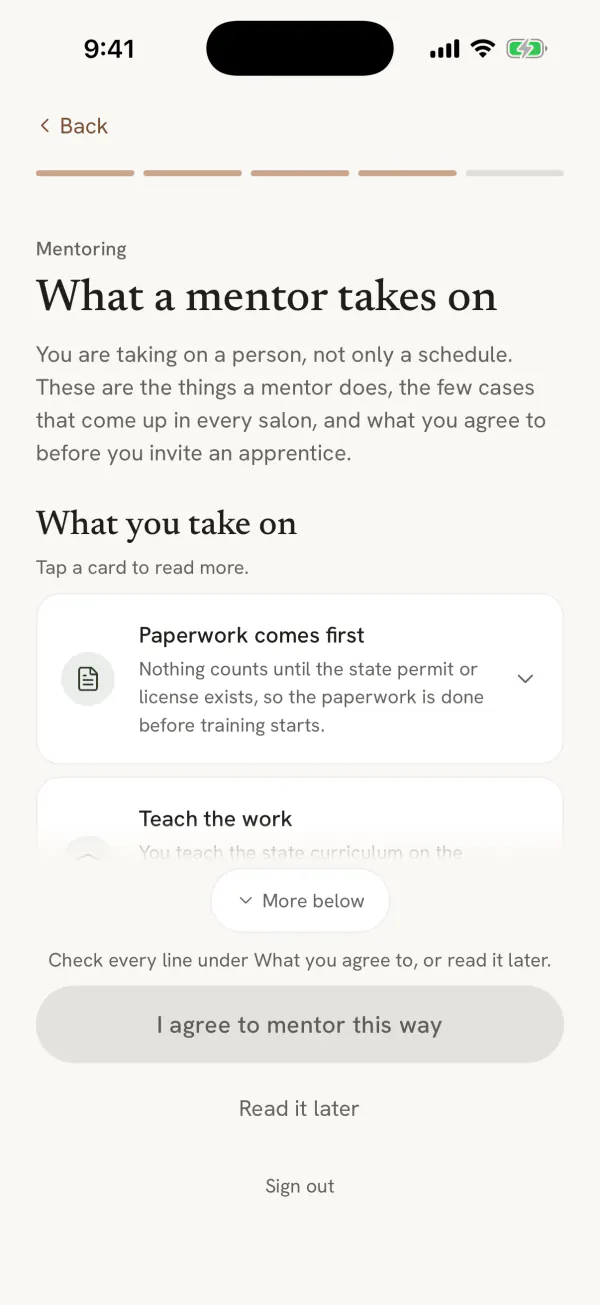
What you take on. 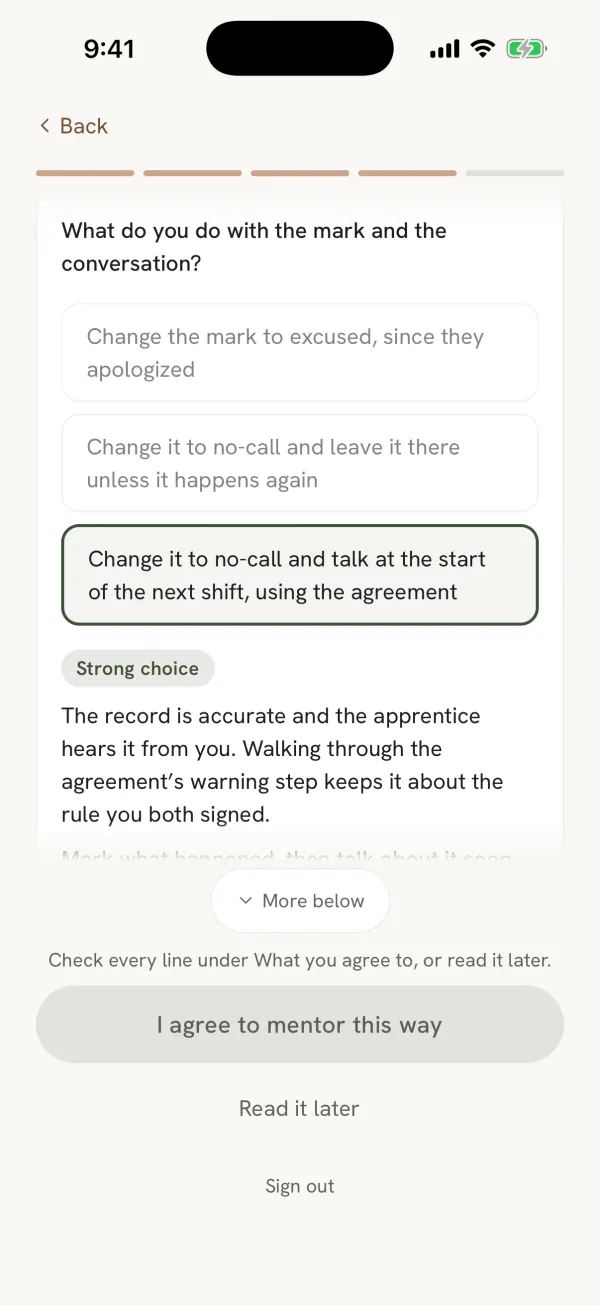
A real case to decide. 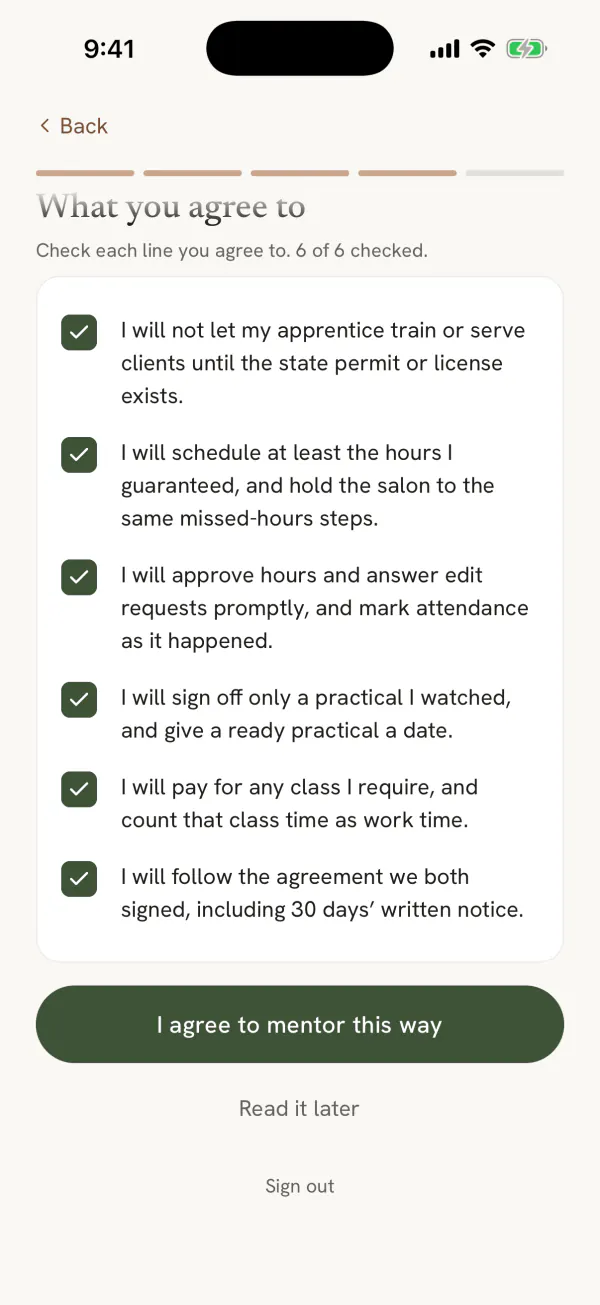
What you agree to.
Choose a plan
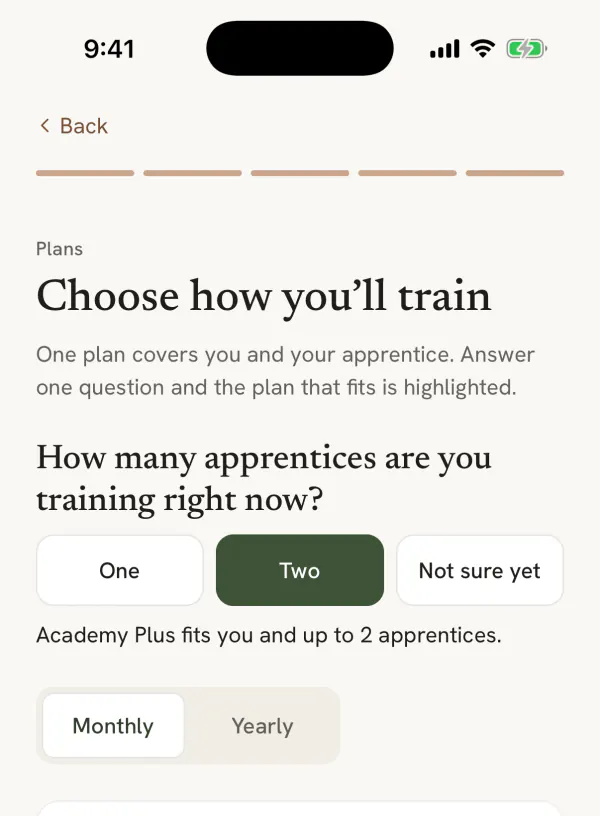
- The plan screen asks How many apprentices are you training right now? Answer One, Two, or Not sure yet, and the plan that fits is highlighted.
- Choose Monthly or Yearly.
- Tap the buy button, or tap Decide later.
One plan covers you and your apprentice; the apprentice pays nothing. See Plans and billing.
Invite the apprentice
The last setup screen says Ready when you are. Tap Go to my home screen, then send the first invitation from the Apprentices tab, as described in Invite an apprentice.
The Getting started list on Home
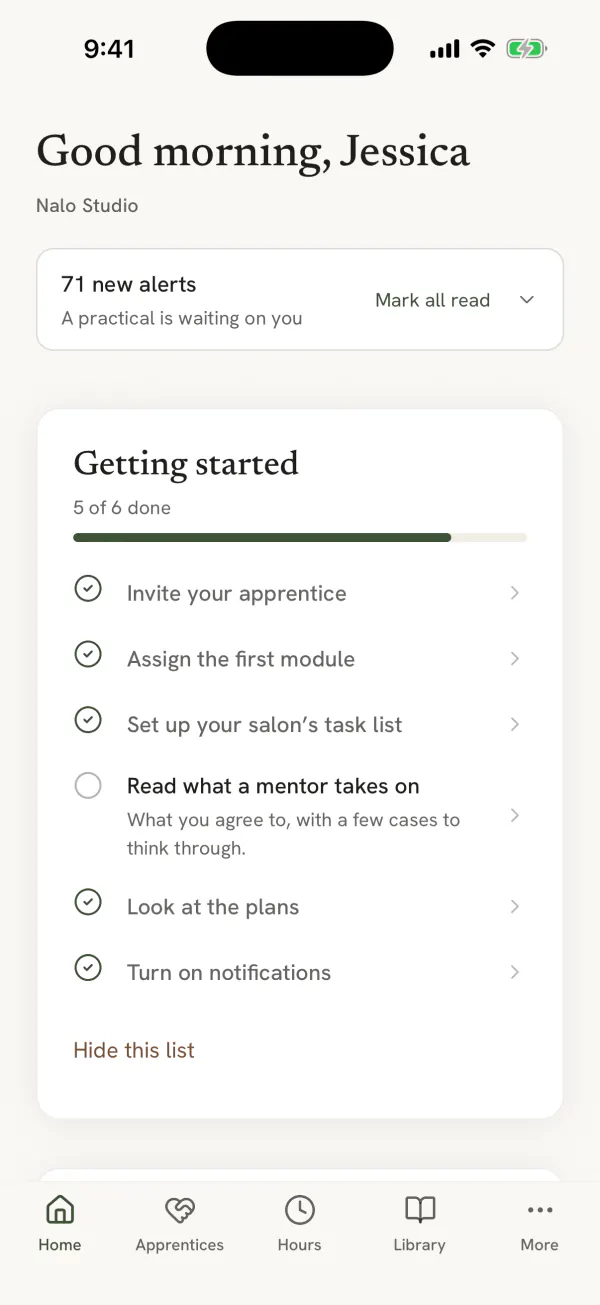
Home shows a Getting started list with a count such as “2 of 6 done.” Each row opens the place where it is done, and checks itself off when it is. Follow along here; this page remembers your checks on this device.
Every row checked. Your apprentice is in good hands.
The list goes away when every row is done. To hide it sooner, tap Hide this list; it does not come back on that account, and everything on it stays where it is in the app.

02How to do each thing
The mentor’s tabs are Home, Apprentices, Hours, Library, and More. Each task below starts from one of them.
Apprentices tab
Invite an apprentice
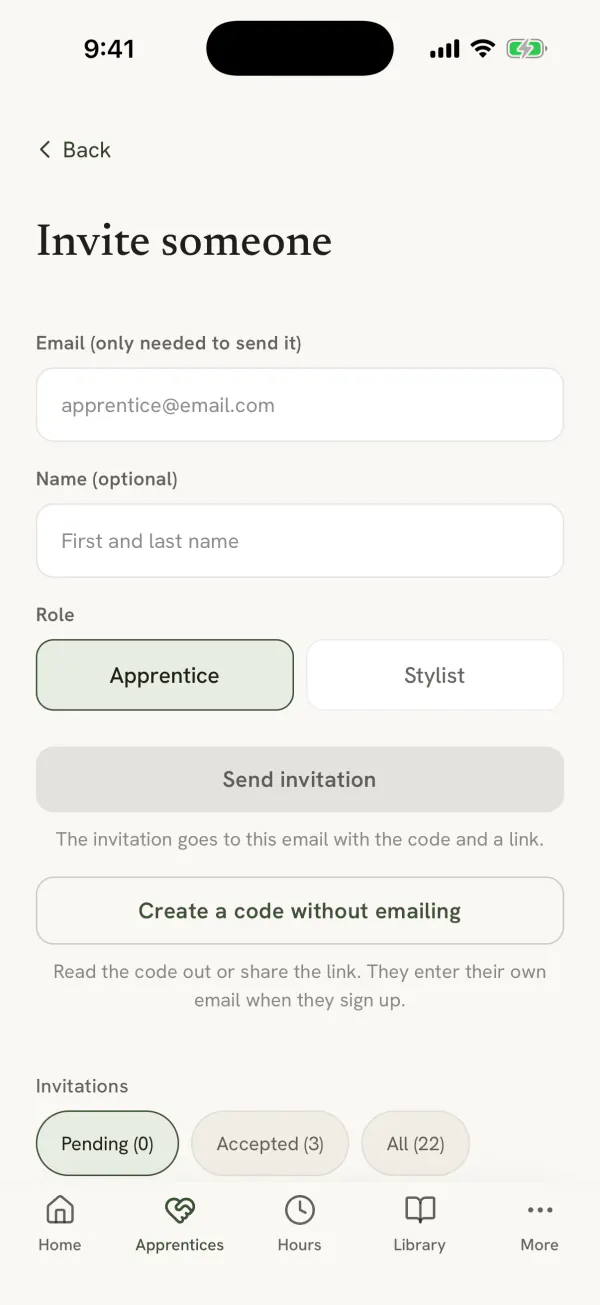
- Open Apprentices and tap Invite. The screen is titled Invite someone.
- Choose the role Apprentice. Add their name if you like.
- To email it, enter their email and tap Send invitation. The email carries the code and a link. To share it yourself, tap Create a code without emailing, then Share code or Share link.
- The apprentice taps Have an invitation code? in the app and enters the six-character code.
Apprentices tab
Assign modules and due dates
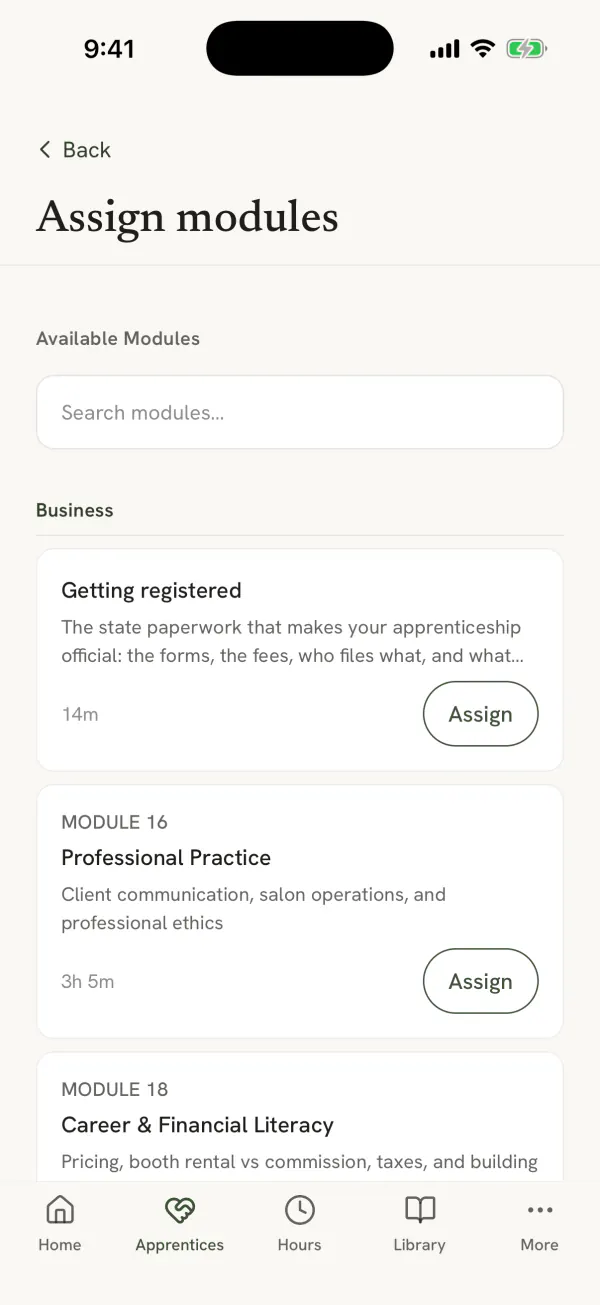
- Open Apprentices and tap Assign.
- Under Available Modules, tap Assign on a module and choose who gets it.
- Pick a due date: No due date, 2 weeks, 1 month, or Pick a date. Tap Assign.
Under Current Assignments, tap a row to see the apprentice’s progress, tap Change due date to move the deadline, or press and hold to remove the assignment. The module appears on the apprentice’s Learn tab; an apprentice on a salon sees the modules assigned to them. When a due date passes, you get a note in the app.
Hours tab
Approve hours
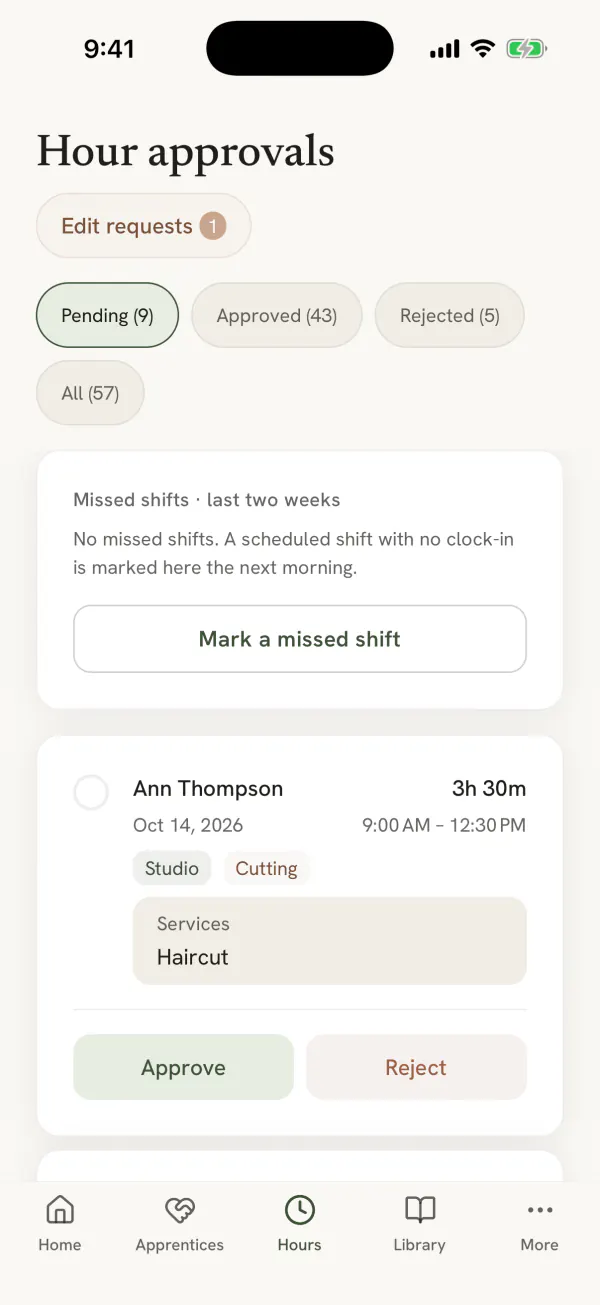
- Open the Hours tab. The screen is Hour approvals, filtered to Pending.
- Tap Approve or Reject on an entry. A rejection needs a reason, and the apprentice sees it on the entry.
- To approve several at once, tap the cards to select them, then Approve with the count.
If an entry was filed with no state-board category, pick the category before you approve; it is written with the approval. An entry clocked in more than 50 meters from the salon shows the distance. A shift nobody clocked out of is closed after 14 hours with an estimated end time, and the apprentice files the correction. Home also shows entries waiting, with Approve and Reject.
Answer edit requests
When an apprentice asks to add missed hours, adjust an entry, add off-site time, or remove an entry, the request comes to you. On Hours, tap Edit requests, then on a request tap:
- Approve to accept it as sent,
- Modify to adjust the date, times, or category before approving, or
- Reject, with a reason.
A change to a shift takes effect only once you approve it, and the record shows what changed.
Apprentices tab
Practicals: schedule, sign off, or not yet
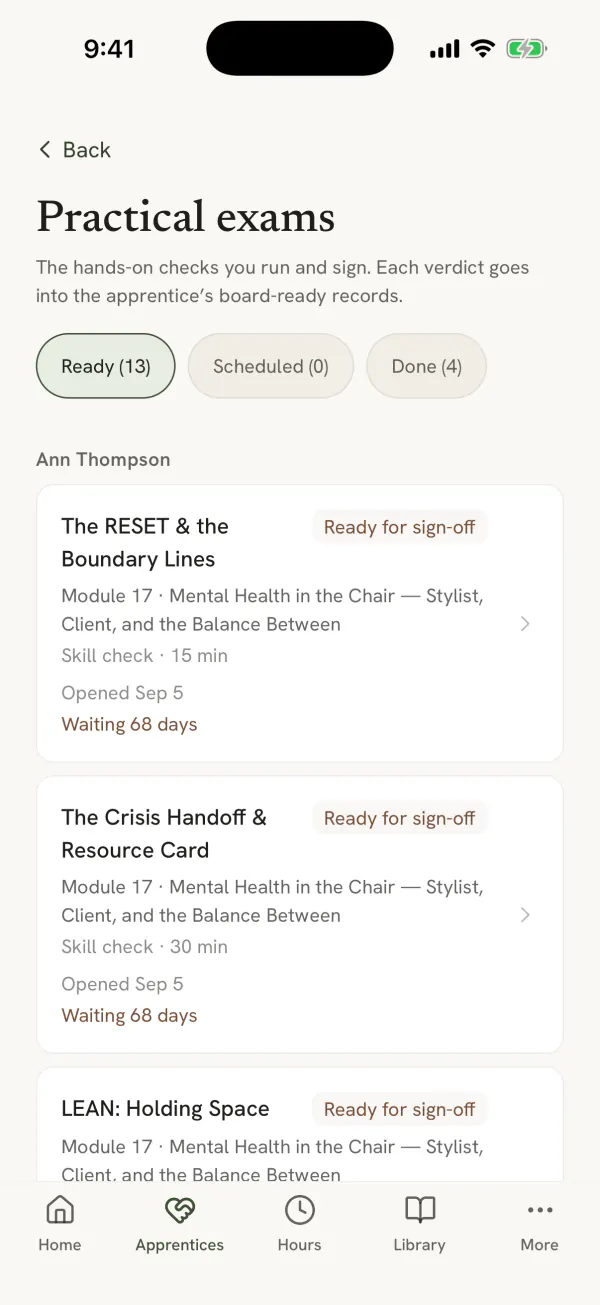
A practical is a hands-on skills check you grade. Open Apprentices and tap Practicals; the badge counts practicals marked ready. The list is filtered Ready, Scheduled, and Done.
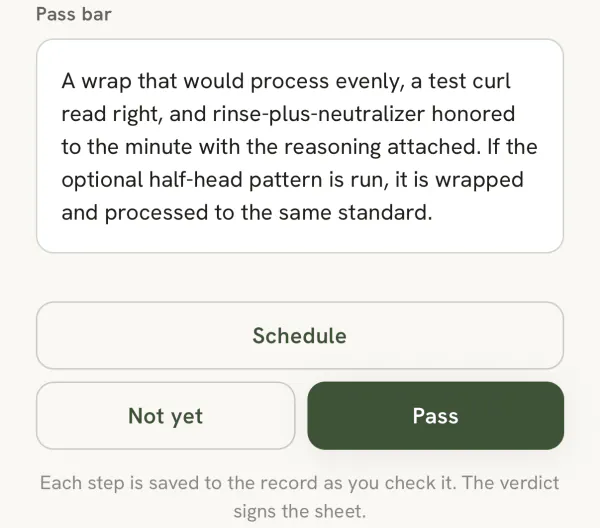
- Schedule. Open a practical, tap Schedule, pick a date and time, and tap Confirm. The apprentice sees it on their module page. Cancel the booking puts it back to Ready and tells the apprentice.
- Watch and check the steps. Each step is saved as you check it.
- Pass. Tap Pass, add notes if you like, and confirm. The sign-off goes on the apprentice’s record with your name and the date.
- Not yet. Tap Not yet, check the lessons to review before the next attempt, and add what to work on. The apprentice sees your note. When it is time to try again, tap Reopen for another attempt.
More tab
Today’s tasks and the task list
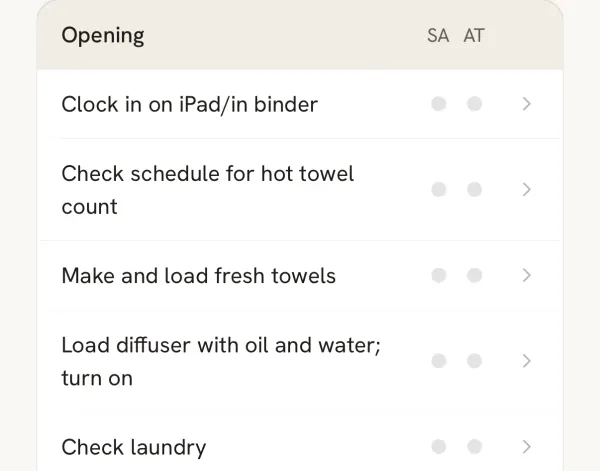
- Task list. More › Task list holds your salon’s opening, during the day, and closing tasks, and shows who has finished today’s. Tap Add item to add one, or Add the usual starter list on an empty list. Removing an item keeps what apprentices already checked off.
- Today’s tasks. More › Today’s tasks picks what each apprentice does today. Choose who (or Everyone) and the day, check items from the task list or add another, and tap Save. With nothing checked, apprentices see the full task list. Each apprentice card also has a Today’s tasks link.
- Tasks. More › Tasks assigns a piece of work to one apprentice, with a due date. When they mark it complete, tap Verify completion.
Attendance marks
The app marks a scheduled shift as a No-show when the apprentice never clocks in. Each morning, a scheduled shift from the day before with no clock-in is marked, and you and the apprentice both get a note. Time away and closed days are skipped.
- Marks from the last two weeks are at the top of Hour approvals, under Missed shifts. Tap a status to change it to No call, no show or Excused, or tap Remove.
- To record one yourself, tap Mark a missed shift, choose the apprentice, the day, and the status, add a note if you like, and tap Save. The apprentice sees the mark and your note in their shift history.
Reminders
On a day when something is waiting for you, you get one summary at 7:05 AM Hawaii time. It is the same clock time for every salon, so on the mainland it arrives later in the morning. The summary comes three ways: as a card in the app, by email, and as a phone notification if you allow notifications. It lists hour entries waiting more than 3 days, practicals ready to schedule, modules coming due, an apprentice who has gone quiet, and paperwork still open.
More tab
Export the record
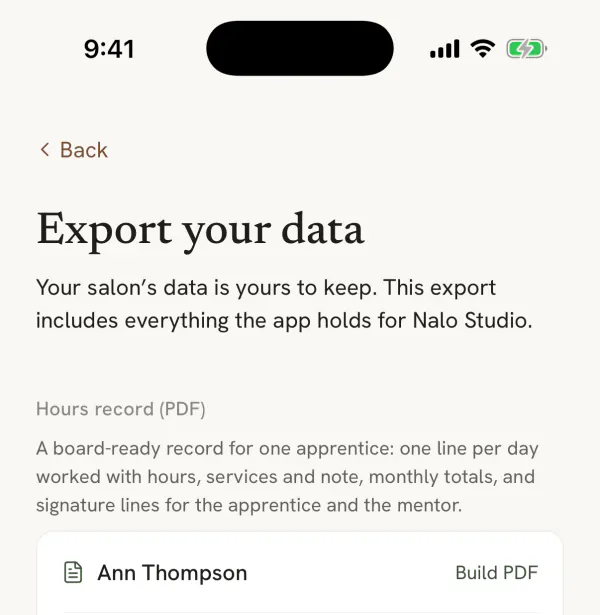
- Open More › Export. The screen is Export your data.
- For the board, use Hours record (PDF): choose the apprentice and tap Build PDF. It has one line per day worked with hours, services, and notes, monthly totals, and signature lines for the apprentice and the mentor, with the permit or license number in the header.
- For everything else, tap Build the export, then Save or send it. It is a ZIP of spreadsheet files: hours with clock-in locations, approvals, and edit requests; curriculum progress; practical sign-offs; the daily checklist; and the team.
More tab
Settings
Open More › Settings.
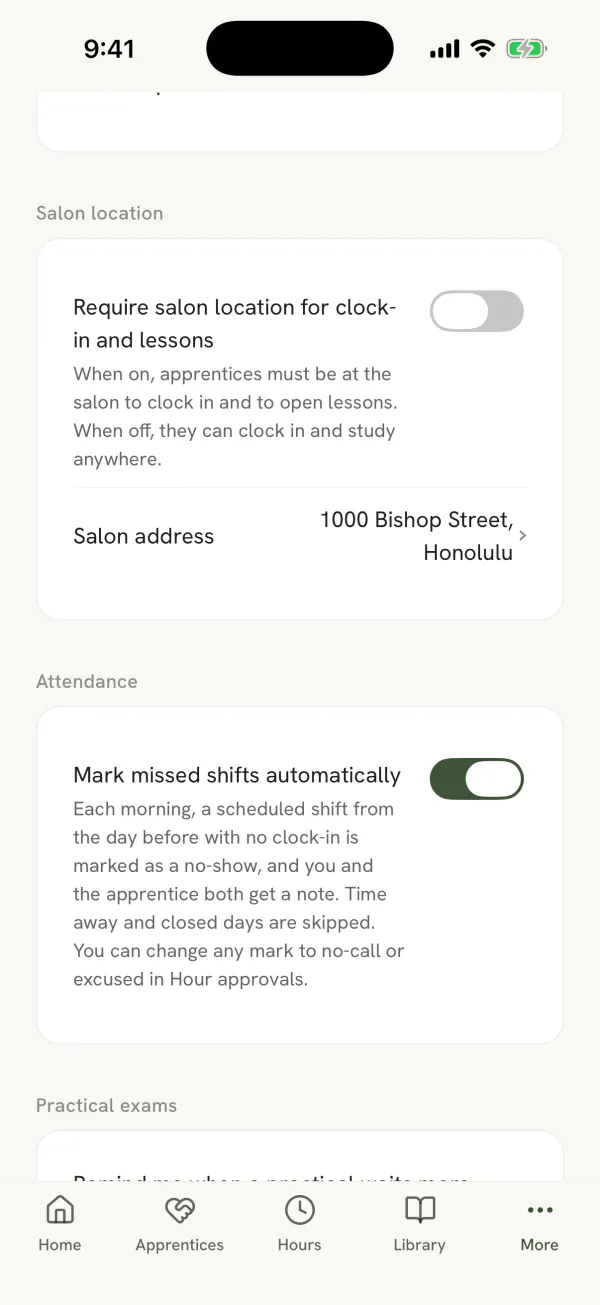
- Salon location. The switch Require salon location for clock-in and lessons decides whether apprentices must be at the salon to clock in and to open lessons. When it is off, they can clock in and study anywhere. It needs a saved salon address, set under Salon address. The check uses the same 150-meter radius for every salon, wide enough for GPS drift indoors.
- Study guide (seat codes). With a plan, tap Create seat code, then Share code. A seat code looks like STUDY- followed by six characters, and the apprentice enters it on a locked lesson or on Learn. The card shows whether it is in use. Revoke turns it off, and an apprentice using it loses study access.
- Subscription. Your plan, where it comes from, and when it renews, with Manage and Restore purchases.
- Attendance and Practical exams: automatic marking and the practical reminder.
- Salon profile to change the salon name; Change password; Export data; the Privacy Policy and Terms; and Delete account.
More tab
The mentor guide under More
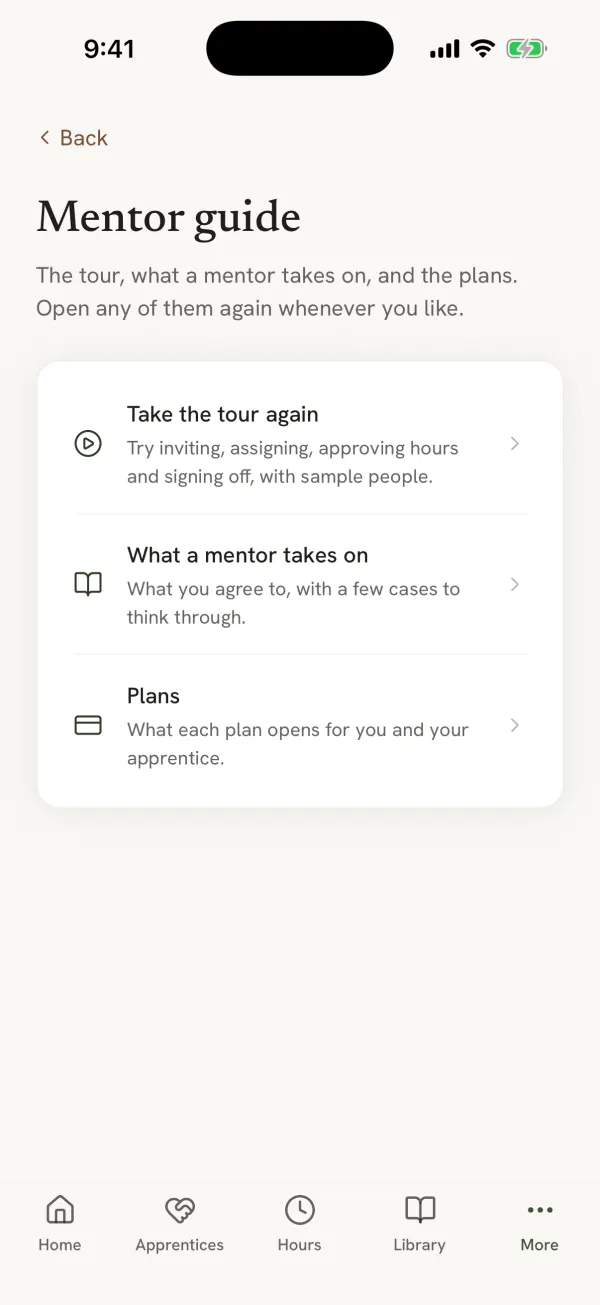
More › Mentor guide holds Take the tour again, What a mentor takes on (with the cases and the button I agree to mentor this way), and Plans.
Apprentice agreements
03What is expected of a mentor
You are taking on a person, not only a schedule. These are the eight things a mentor does. Turn a card for the detail.
Paperwork comes first
Nothing counts until the state permit or license exists, so the paperwork is done before training starts.
Paperwork comes first
The state registers the apprenticeship (in California, through an approved program sponsor). Hours worked before the permit or license exists do not count, and the apprentice may not train or serve clients before then. The apprentice’s first module is the state registration checklist. Part of that list is yours to sign or file, and it shows on their roster card under Apprentices.
Teach the work
You teach the state curriculum on the floor, and you choose how much of your own knowledge to add.
Teach the work
Your state sets a curriculum every apprentice must learn before the license exam. The lessons in the app cover the theory; you show the hands-on work on the floor. What you teach beyond that list is extended education, and it is yours to share; many mentors repay themselves for it through an early commission schedule.
Supervise and correct
An apprentice works under your watch, and correction is part of every day for a long time.
Supervise and correct
Client work happens where you can see it, and you step in before a mistake reaches the client. Correct in private when you can; an apprentice who is corrected in front of a client learns to hide mistakes instead of asking. Give daily work a shape with Today’s tasks and the task list.
Schedule the hours you promised
You guarantee a minimum number of hours each week, and you keep that promise as you expect theirs kept.
Schedule the hours you promised
The apprentice needs a set number of hours for the license, so the minimum you guarantee should be a real number in the agreement. When the salon cancels hours it promised, the same steps apply to you that apply to a missed shift: a warning, a review meeting, and then the agreement can end.
Approve hours on time
Every shift your apprentice clocks waits for you, so the record is only as current as your approvals.
Approve hours on time
Hours clock in at the salon and wait for you, so the record is only as current as your approvals. Answer edit requests promptly, and mark attendance as it happened.
Sign off practicals you watched
Your sign-off is the only hands-on check the record carries, so you watch the skill before you sign.
Sign off practicals you watched
A practical marked ready deserves a date. If the skill is not there yet, say what to work on; a clear no with a next step is better than a long wait.
Pay and classify fairly
An apprentice is almost always a W-2 employee, and what you may require follows from that.
Pay and classify fairly
If you set the hours, dress code, meetings, and methods, the person is your employee, whatever the paperwork says, and misclassification is the mentor’s risk: the business that chose the wrong label owes the back taxes, back wages, and penalties. If you require a class, you pay for it, and for an employee the class time is work time. An employee earns at least minimum wage for every hour; if commission falls short in a slow week, the salon pays the difference.
Put the deal in writing
A signed apprentice agreement sets hours both ways, the missed-hours steps, pay, and notice.
Put the deal in writing
The agreement sets the hours you guarantee and the hours they commit to, the missed-hours steps for both sides, 30 days’ written notice either way, and a commission schedule. Every number on a commission schedule is yours to set. Give the apprentice time to take it home and ask questions; a fair agreement is never signed on the spot.
04What would you do?
Four cases that come up in every salon, taken from the app’s mentor guide. Choose an answer to see how it plays out.
Case 1 of 4
A missed Saturday
Your apprentice did not come in for a Saturday shift and did not call. The app marked it a no-show. On Sunday they text an apology and say they overslept.
What do you do with the mark and the conversation?
Mark what happened, then talk about it soon, using the steps you both agreed to.
Case 2 of 4
A practical that has waited three weeks
Your apprentice marked a blowout practical ready three weeks ago. The reminder keeps arriving. You have seen them do good blowouts on clients, and the salon is busy.
What do you do this week?
A practical marked ready deserves a date, and a sign-off means you watched it.
Case 3 of 4
A paid class outside the salon
A product company is running a color class on a Sunday, with a fee. You want your apprentice to take it, because it matches how you color.
How do you set it up?
If you require it, you pay for it, and the time counts as work.
Case 4 of 4
A complaint about a shampoo
At checkout, a client tells you the water was cold during their shampoo and they felt rushed. Your apprentice did the shampoo and is with another client now.
How do you handle it?
Care for the client first, then teach the apprentice in private.