
Guide · Apprentices
For apprentices
An apprentice trains in a salon under a licensed mentor. Here is how to join your salon, each task in the app step by step, what you take on, and how to study on your own before you have a salon.
Training in a salon? Ask your mentor for your invitation code before you start.
On this page
01Getting started
Your mentor sends the invitation; you bring the phone. Setup asks a few questions and then shows you around.
Join with an invitation code
Your mentor sends an invitation by email or shares a six-character code. A code works for 14 days.
- Download Rootegra Academy from the App Store on your iPhone.
- On the sign-in screen, tap Have an invitation code?, enter the code, and tap Verify code. The app shows the salon, who invited you, and the role.
- Tap Accept and create account, then enter your name, email, and a password of at least 10 characters.
Setup: state and paperwork
- A few details. Your name and email go on your apprenticeship records, and only your salon sees them. Phone and mailing address are optional.
- Your state. Each state board sets its own hours, curriculum, and written exam. On a salon, you take the salon’s state.
- One question. Have you filed all of your state-required paperwork? Answer Yes, No, or Not sure. If the answer is no or not sure, the Getting registered module is pinned to Learn with your state’s checklist. Nothing else is locked.
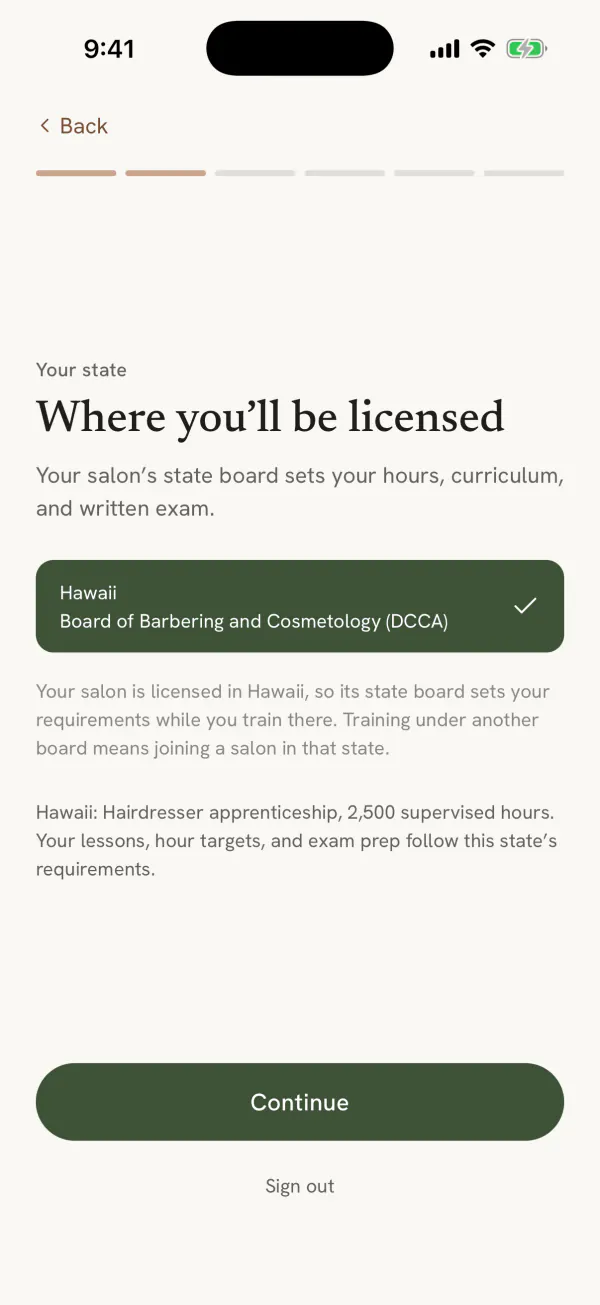
Your state. 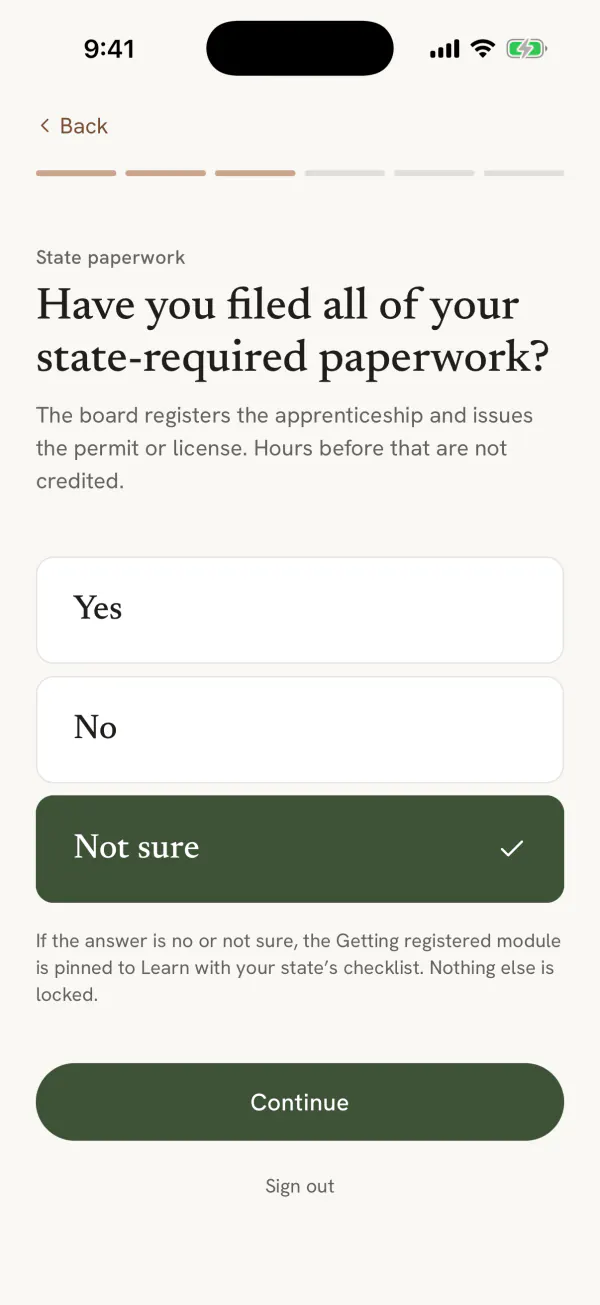
The paperwork question. 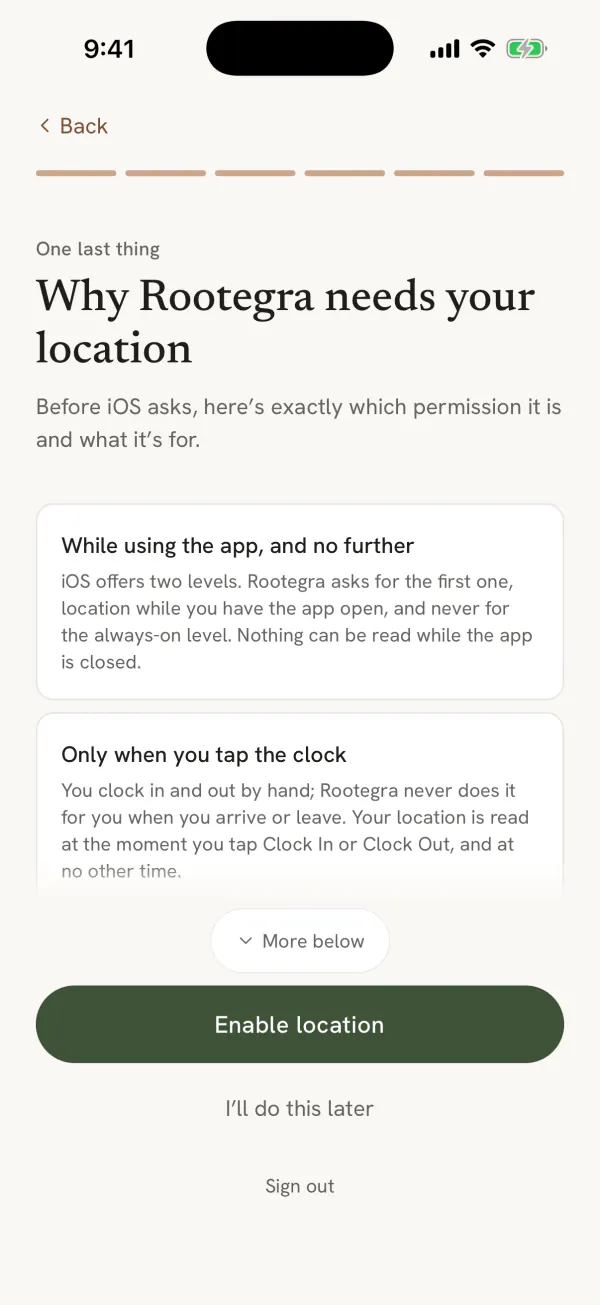
Location for clock-in.
The tour
A short tour lets you try the main tasks with sample people: track your hours with Clock in and Clock out, read a lesson and take its quiz, check off the daily checklist, play a practice game, and get signed off.
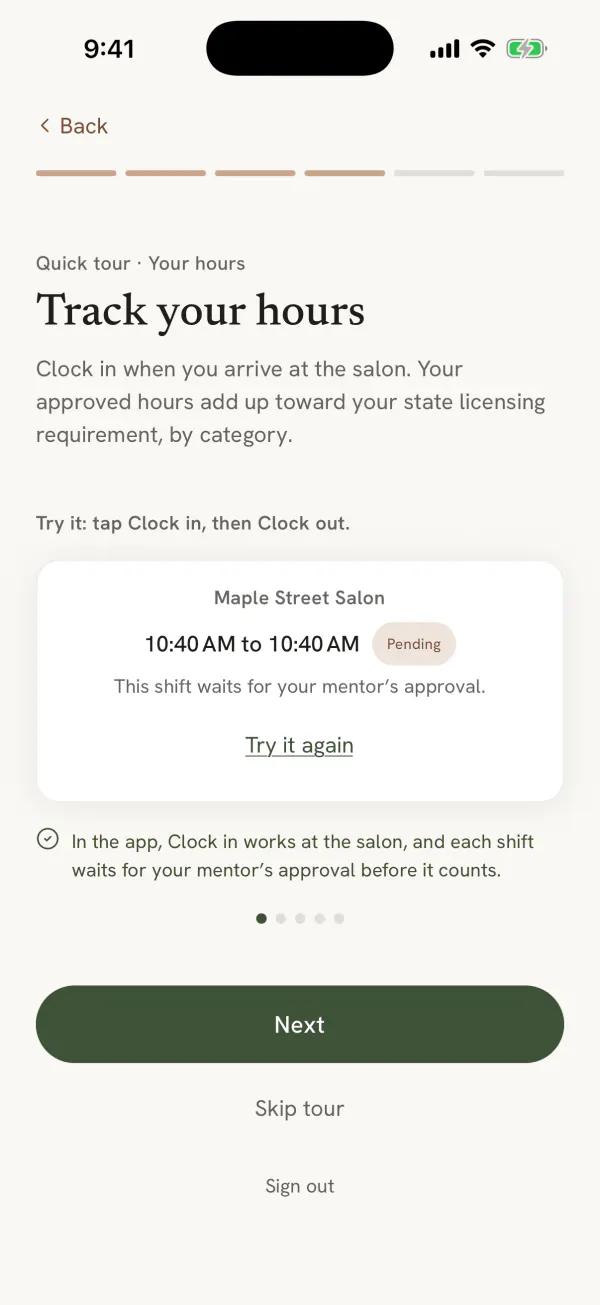
Track your hours. 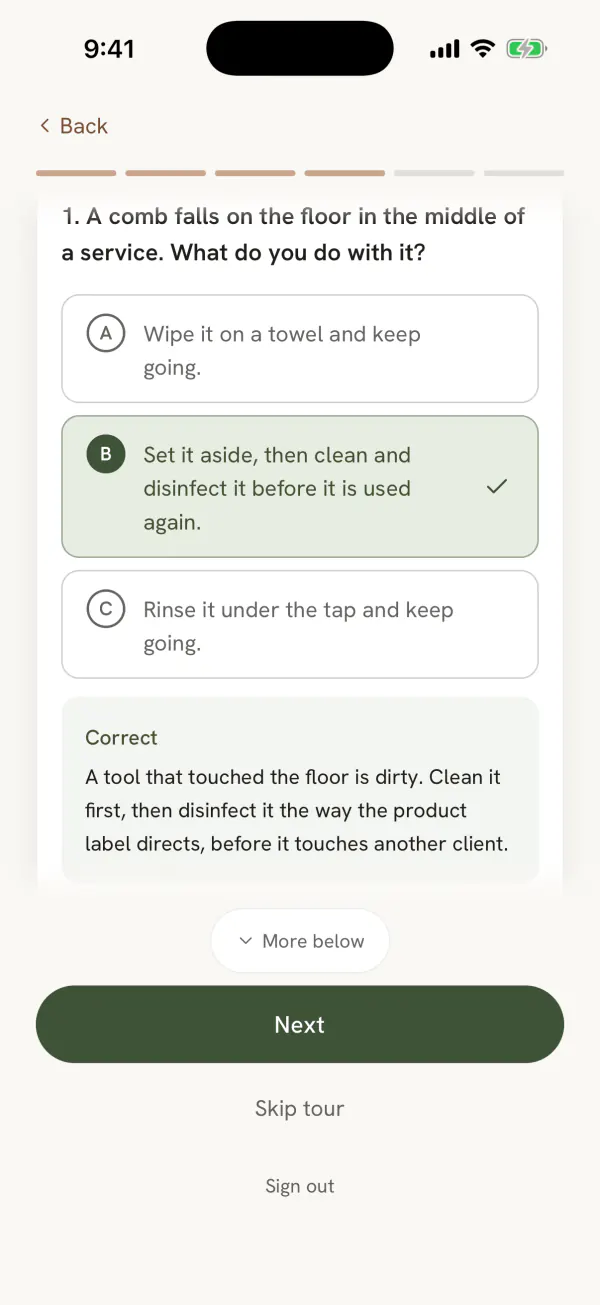
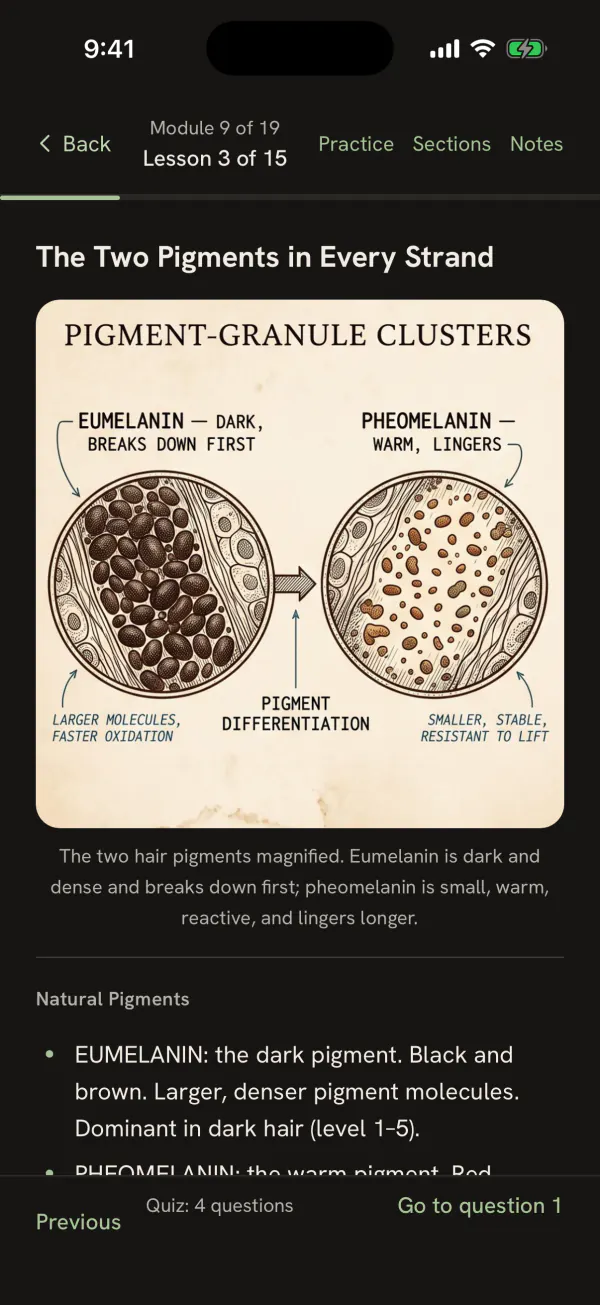
A lesson and its quiz. 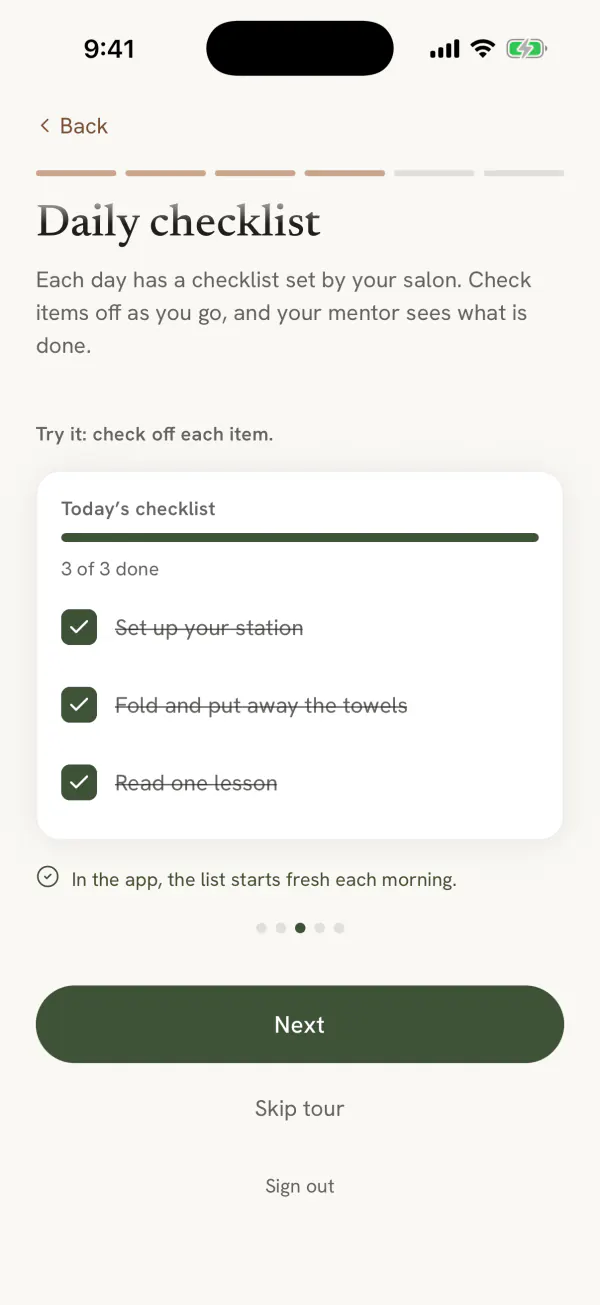
The daily checklist. 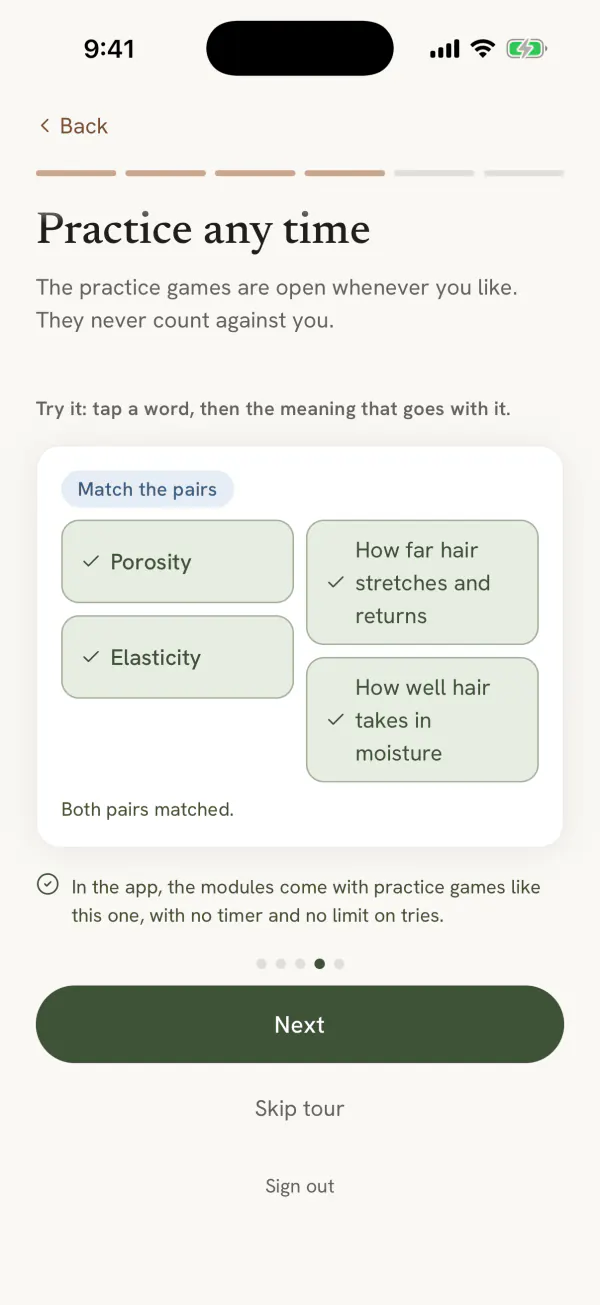
A practice game. 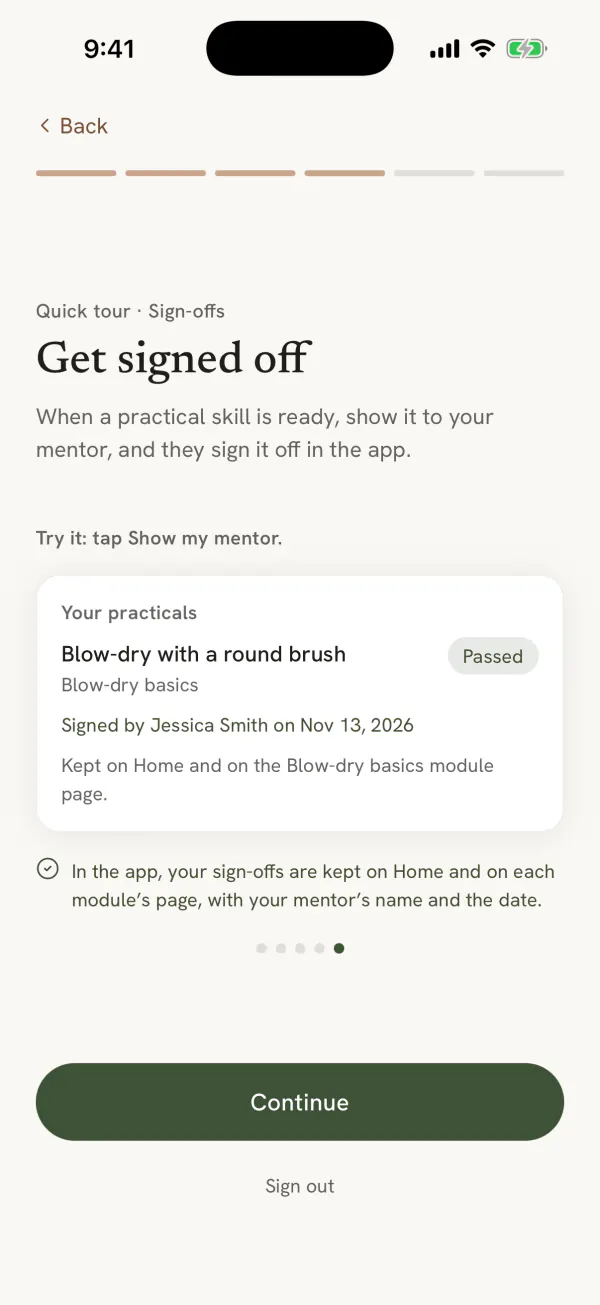
Get signed off.
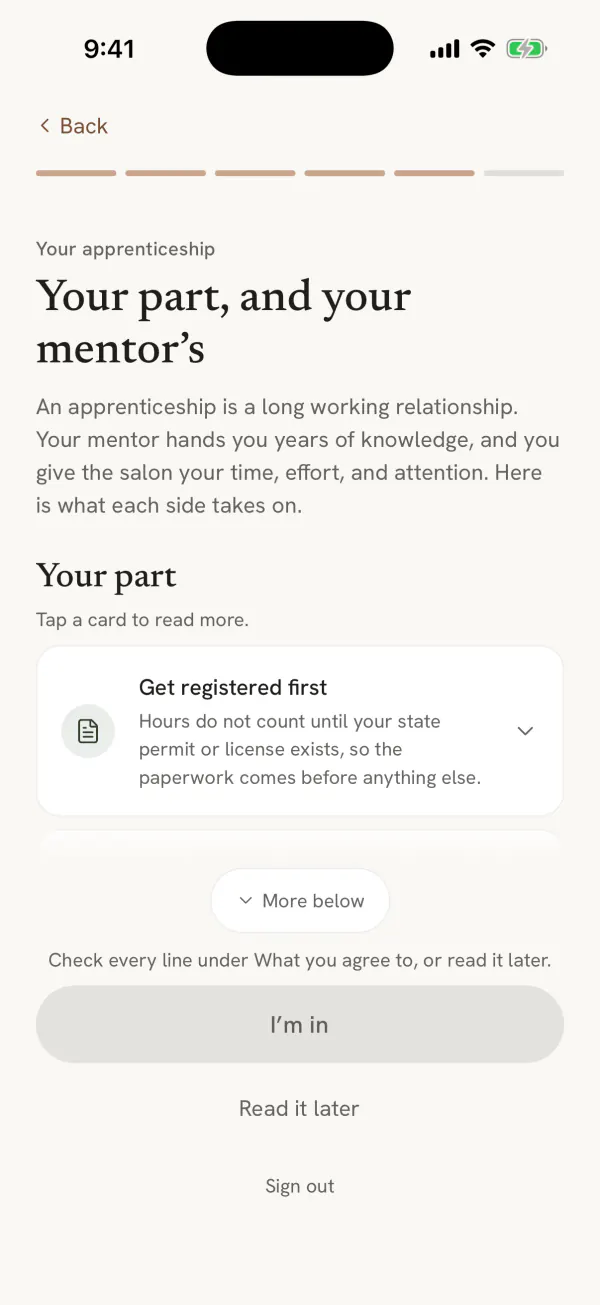
Your part, and your mentor’s
The next step lists what you take on, what you can expect from your mentor, and a few real cases to decide. Check every line under What you agree to, or tap Read it later.
It is under Profile › Guide too, and summarized below, where you can also try the cases yourself.
Location for clock-in
The last step explains the location permission before iOS asks for it:
- Rootegra asks for location while using the app, and never for the always-on level. Nothing is read while the app is closed.
- Your location is read only at the moment you tap Clock In or Clock Out. The app never clocks you in or out on its own.
- Your salon sees the location saved with each clock-in and nothing else.
- Your mentor can require the salon location for clock-in and lessons. When that is on, lessons and exams open at the salon only. When it is off, you can study anywhere.
Tap Enable location, or I’ll do this later. Then Go to my home screen.
The Getting started list on Home
Home shows a Getting started list. Each row opens the right place and checks itself off when done. Hide this list removes it for good. Follow along here; this page remembers your checks on this device.
Every row checked. Now the real work starts.

02How to do each thing
The apprentice’s tabs are Home, Learn, Hours, Practice, and Profile. Each task below starts from one of them.
Learn tab
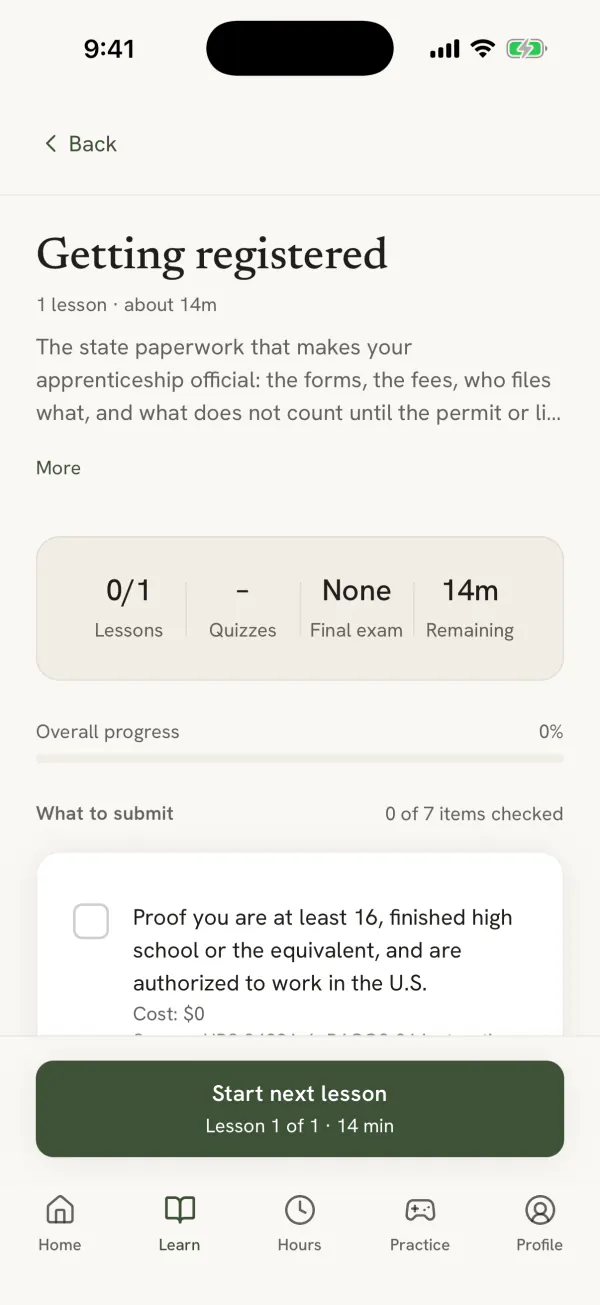
Get registered and enter your number
- Open Learn. Getting registered is pinned at the top.
- Under What to submit, check off each item as you submit it. What your mentor does is your mentor’s part, and they check it off.
- Do not train or serve clients before the permit or license exists.
- When it arrives, tap License received and enter the number as printed, the state, and the date it arrived. Tap Save.
The number prints on your hours tracker and on every hours export, and the module comes off the top of Learn.
Hours tab
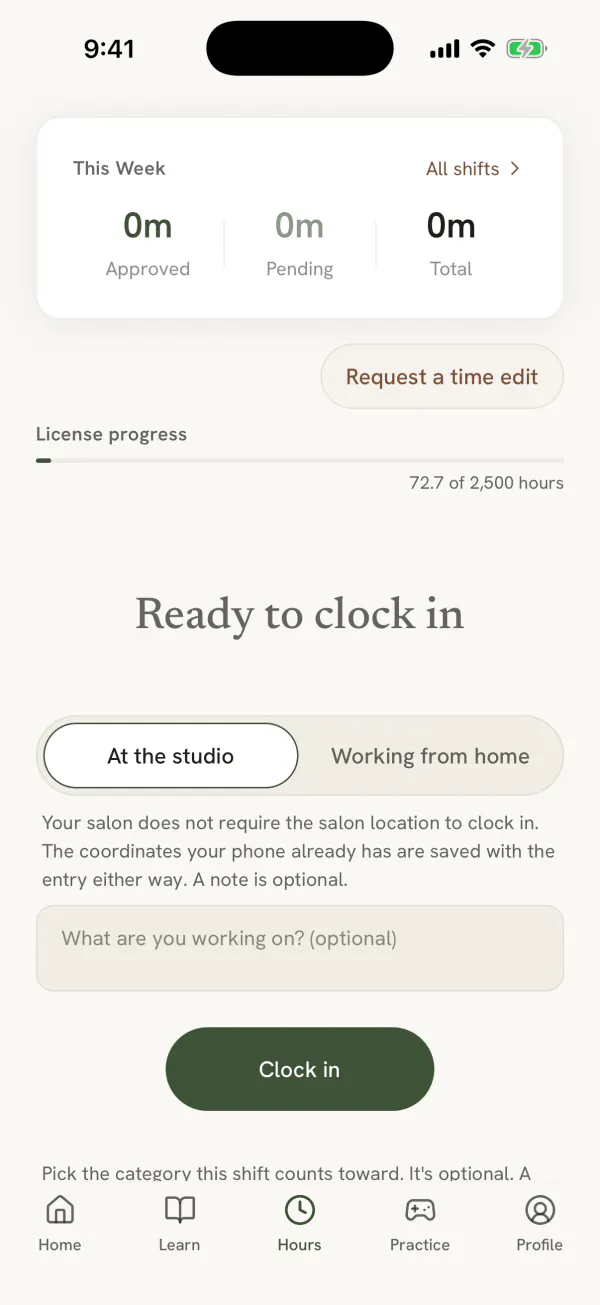
Clock in and out
- Open the Hours tab and choose At the studio. Add a note if you like. Home has the same Clock in button.
- Tap Clock in when your shift starts.
- Tap Clock out when it ends, and choose the category for the shift.
Each shift waits for your mentor’s approval before it counts. For a special project away from the salon, choose Working from home and write a note about what you worked on; no location is recorded. This Week shows approved and pending hours, and All shifts opens your shift history, with attendance marks and an Hours record (PDF).
Hours tab
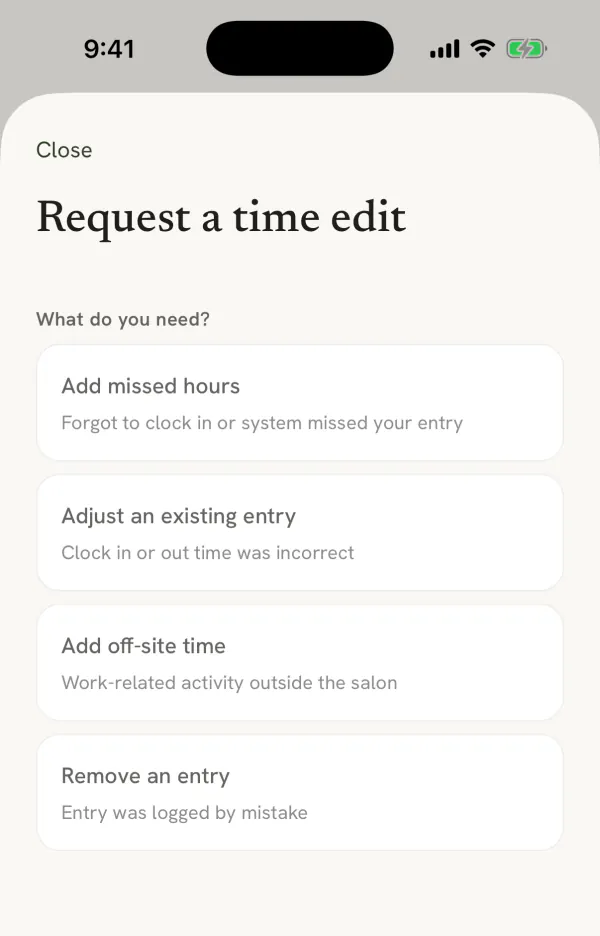
Request an edit
- On Hours, tap Request a time edit, or tap a shift in your history.
- Choose what you need: Add missed hours, Adjust an existing entry, Add off-site time, or Remove an entry. Pick the shift if asked; shifts from the last 30 days are listed.
- Enter the date, clock-in and clock-out times, the category, and a reason. Tap Submit request.
Your mentor approves, modifies, or rejects it. Until they review it, you can open it under Your requests and tap Withdraw.
Learn tab
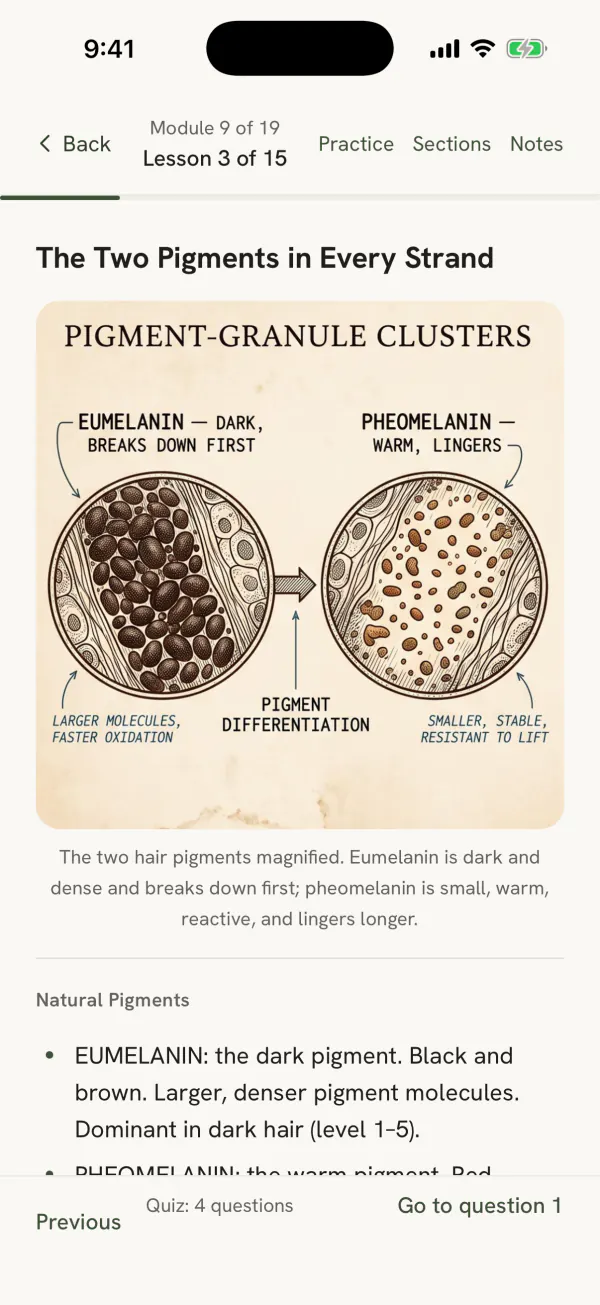
Lessons
Learn shows Your Curriculum: the modules your mentor assigned, with due dates. Open a module and tap Start next lesson. Lessons open in order; each one opens after the one before it is finished.
Quizzes and exams
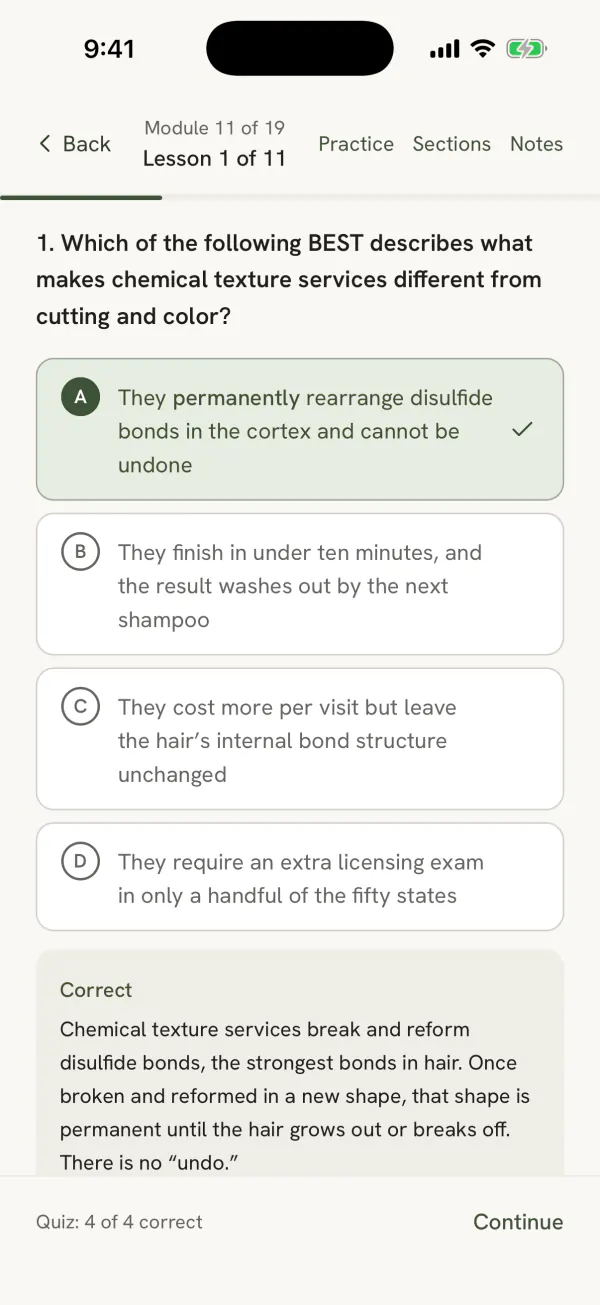
- Lesson quiz. Each lesson ends with Test your understanding. Your first answer is the one recorded, and the reason shows beside it. The lesson is marked complete once every question has an answer. Your mentor sees the score; tap a missed number to review it.
- Final exam. Each module ends with an exam that opens when every lesson is complete. You need 70 percent to pass. There is no time limit, you can change an answer until you submit, and retakes are allowed. Every attempt stays on the record for your mentor, and the higher score is the one kept.
Practice tab
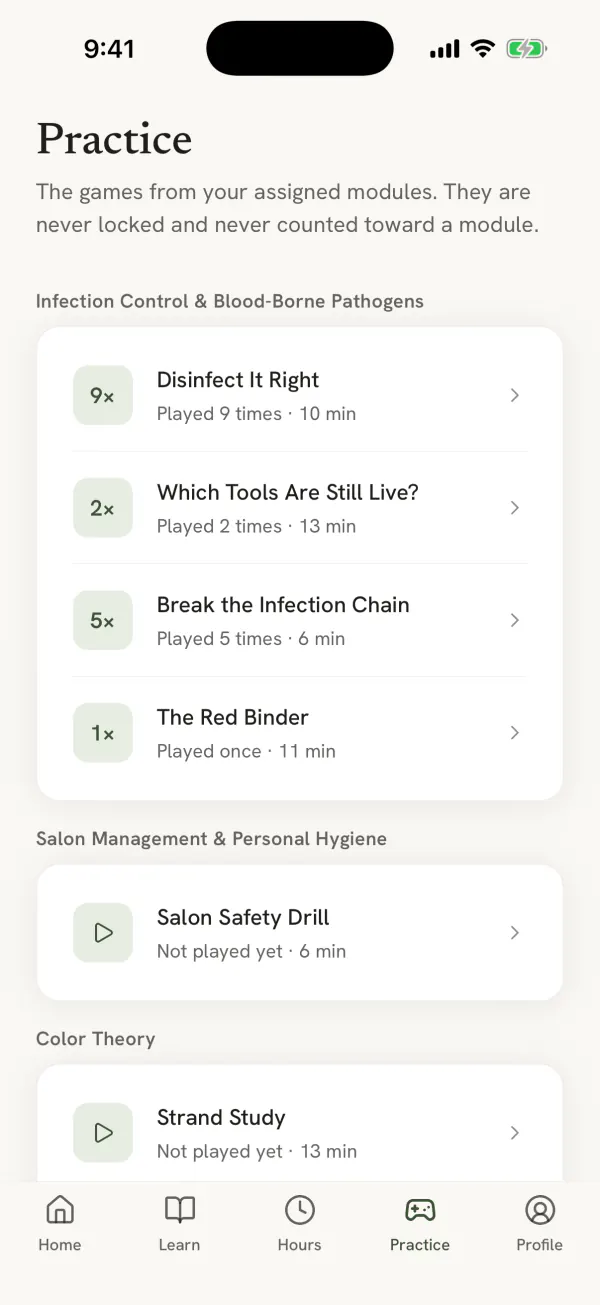
Practice games
The Practice tab holds the games from your assigned modules. They are never locked and never counted toward a module, with no timer and no limit on tries. Play them on a break, on the bus, or the night before a practical.
Home
Daily tasks
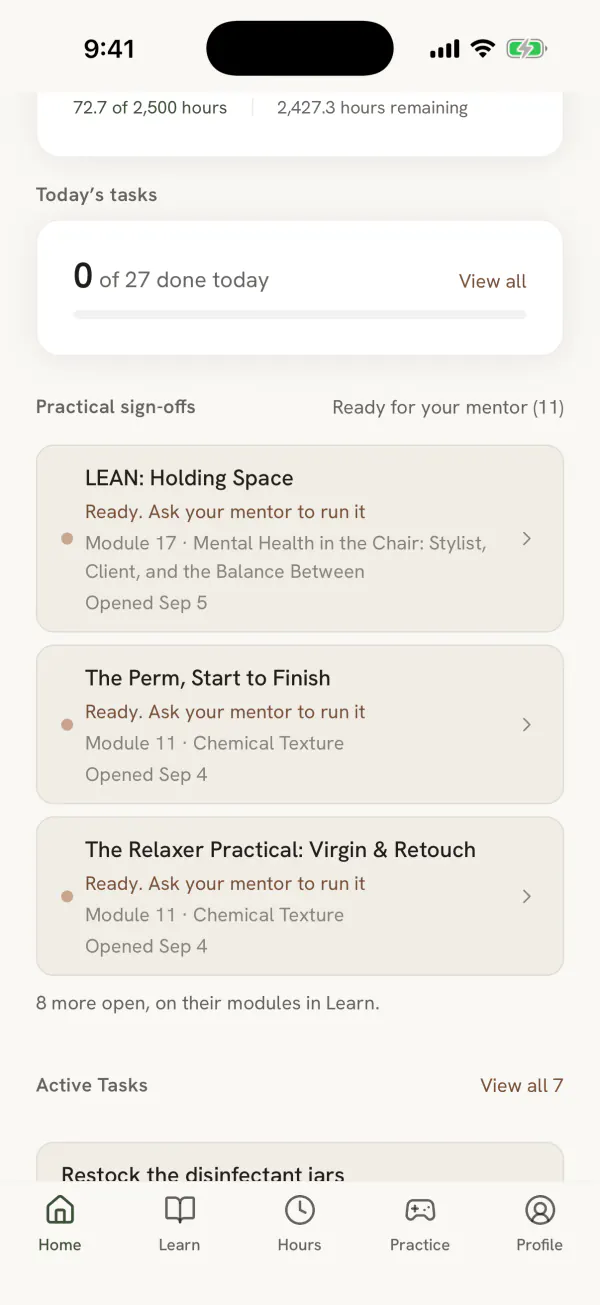
On Home, Today’s tasks shows the checklist your salon set for the day, in the order of the day: when you get in, while you are there, and before you leave. Check items off as you go; your mentor sees what is done. The list starts fresh each day.
Work your mentor assigns to you is under Active Tasks: tap Start, then Mark complete, and your mentor verifies it.
Home and Learn
Practicals and sign-offs
When a skill is ready, your mentor watches you do it and signs it off. A scheduled practical shows on the module’s page. Your sign-offs are kept on Home and on each module’s page, with your mentor’s name and the date.
If the answer is not yet, your mentor lists what to review and reopens the practical when it is time to try again.
Sign your apprentice agreement
- When your mentor sends one, Home shows that it is waiting for your signature. It is also under Profile › Apprentice agreement.
- Read it all the way through. Check the hours your mentor guarantees, the hours you commit to, the commission schedule, and the notice period.
- Type your full name and tap Sign. Typing your name and pressing Sign is your signature. Or tap Decline and give a reason.
The signed copy is saved on your apprentice record, and you can open it any time.
Notes
In a lesson or a practice game, tap Notes at the top. Notes are private to you, saved to your account, and save as you type. All of them are under Learn › My notes.
Profile and the guide
Profile › Guide holds Take the tour again, Your part, and your mentor’s, and Study plans. Profile also has My details, Account (change your password), the plan card, Sign out, and Delete account.
03Studying on your own
You can study before you have a salon. On the sign-in screen, tap Create an account and choose I’m studying on my own. Setup asks for your details and your state, then shows a short tour.
- The free chapterThe first chapter, on infection control, is open to everyone. Learn has Read the free chapter.
- The Study planA Study plan opens every module for your state: all the lessons, practice games, quizzes, and exam prep. On Learn, tap Study plans and seat codes. The current price is shown there and on the App Store.
- A seat codeA mentor on an Academy plan can cover a seat for you with a code that starts with STUDY-. Enter it under Have a code from your mentor? and tap Redeem code.
- Joining a salon laterWhen a salon sends you an invitation code, open Profile › Join a salon and enter it. Hours, daily tasks, and your mentor’s sign-offs start there.
04What is expected of an apprentice
Seven things you take on. Turn a card for the detail.
Get registered first
Hours do not count until your state permit or license exists, so the paperwork comes before anything else.
Get registered first
Do not train or serve clients before the permit or license exists. The Getting registered module on Learn lists your state’s steps.
Show up, or call ahead
Each scheduled shift is a promise. Clients are booked, and your mentor plans teaching around you.
Show up, or call ahead
If you cannot make a shift, tell your mentor as early as you can, before the shift starts. A missed shift is marked a no-show; missing it without telling anyone ahead is a no-call; excused means your mentor agreed to the absence. You see every mark in your shift history, and your agreement says how marks lead to a warning.
Log hours honestly
You clock in from the salon for the time you work, and your mentor approves it.
Log hours honestly
Clock in when your shift starts and out when it ends, from the salon, for the time you actually work. If an entry is wrong, request an edit with the real times.
Keep up with the lessons
The lessons cover the theory your mentor’s floor teaching builds on, and the exam is waiting at the end.
Keep up with the lessons
Your mentor sees your progress, your quiz scores, and what you missed. Give the lessons a set time each week.
Practice until it is ready
Practice on your own time, then ask for a practical when a skill is ready to be watched.
Practice until it is ready
If you do not pass the first time, ask what to work on and when you can try again.
Take correction well
Your mentor will correct you every day for a long time, and that is the teaching.
Take correction well
When your mentor shows you a way, do it that way first, and ask about a better way at a quiet moment, not in front of a client. Safety and sanitation steps are never skipped. If a client is unhappy, stay calm, listen, and get your mentor.
Read your agreement
Your apprentice agreement sets hours both ways, pay, attendance, and notice, and you sign it in the app.
Read your agreement
Take it home and read every line before you sign. Either side ends the agreement with 30 days’ written notice. A talk in the break room is not notice.
What you can expect from your mentor
- Your mentor makes sure the state paperwork is done before you train or serve clients.
- Your mentor teaches the hands-on work and assigns lessons that fit where you are.
- Your mentor supervises your client work and corrects you in private when they can.
- Your mentor schedules at least the hours they guaranteed in your agreement.
- Your mentor approves your hours and answers your edit requests promptly.
- Your mentor watches a practical before signing it off, and gives a ready practical a date.
- Your mentor pays for any class they require, and for an employee that class time is work time.
- Your mentor follows the agreement you both signed, including 30 days’ written notice.
05What would you do?
Three cases from the app’s apprentice guide. Choose an answer to see how it plays out.
Case 1 of 3
Sick on a shift morning
You wake up at 6 with a fever. Your shift starts at 9, and you have a shampoo and a blowout booked with your mentor.
What do you do?
Call or text before the shift, as early as you can.
Case 2 of 3
Forgot to clock in
On Tuesday you worked your whole shift but never clocked in. That night at home you notice the day is missing from your hours.
How do you get the hours on your record?
Fix a missing entry with an edit request, never with a new clock-in.
Case 3 of 3
Busy on the floor, behind on lessons
Clients like you, and your floor work is going well. You are also three modules behind the due dates your mentor set, and your mentor has noticed.
What do you do?
The floor and the lessons both count, so give the lessons a set time each week.